SSO Connection
SSO connection allows access to the data source without manually entering credentials.
Authentication is performed automatically using the account configured in the Manager.
Data Source Configuration
Data sources are managed per environment.
A user can only use the data sources associated with their environment.
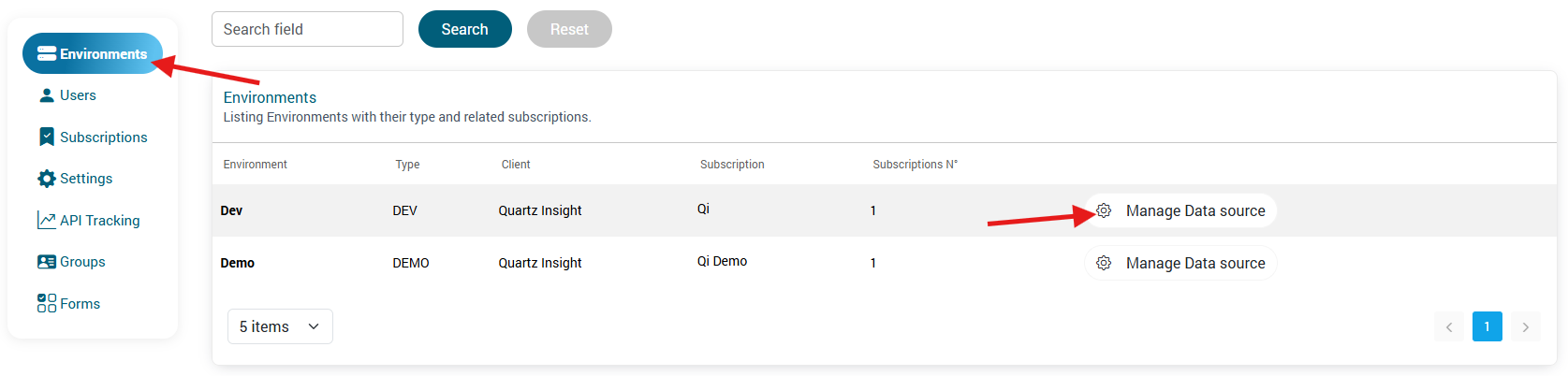
1. Accessing Data Source Management
From the “Environment” view, click “Manage Data Source”.
2. Adding a New Data Source
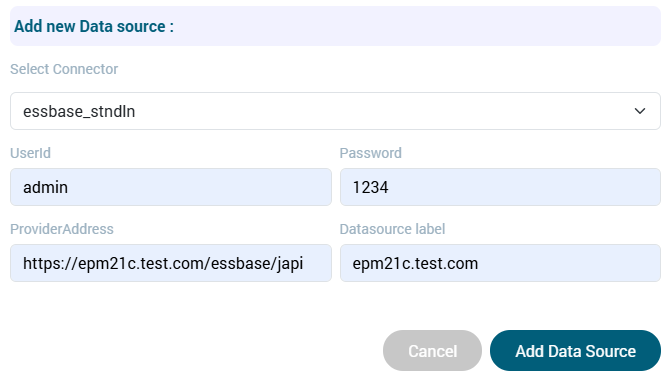
Click “+ Add Data Source”, then fill in the following parameters:
- Connector
- UserId (administrator account)
- Password
- Provider address
- Data source label
Validate by clicking “Add Data Source”.
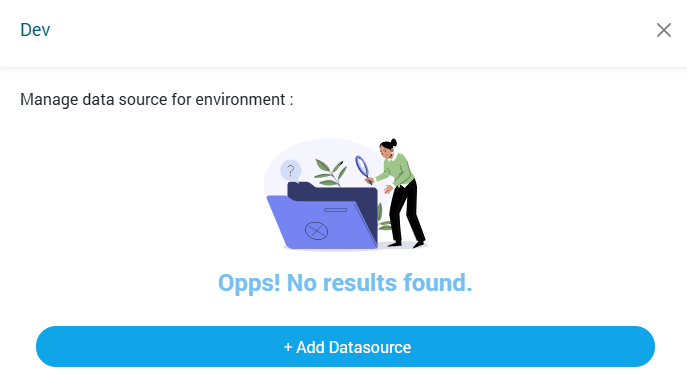
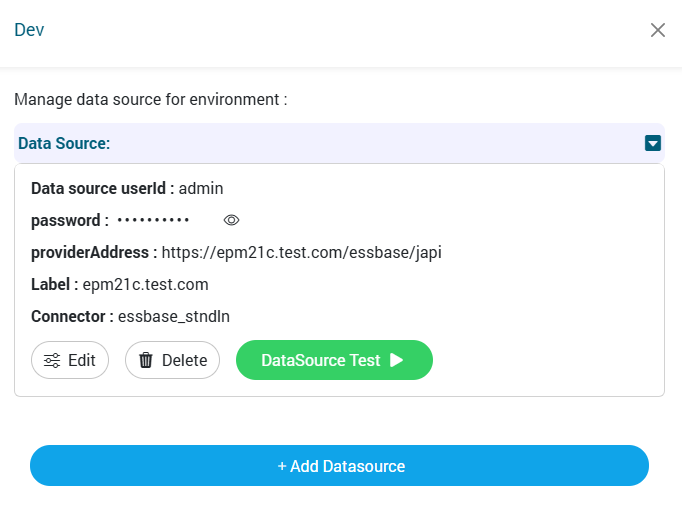
The new data source will then appear in the list.
User Configuration
To finalize the SSO setup, each user must be associated with their SSO login identifier.
1. Opening the User Profile
From the “Users” view, click the “Edit” button for the user you want to configure.
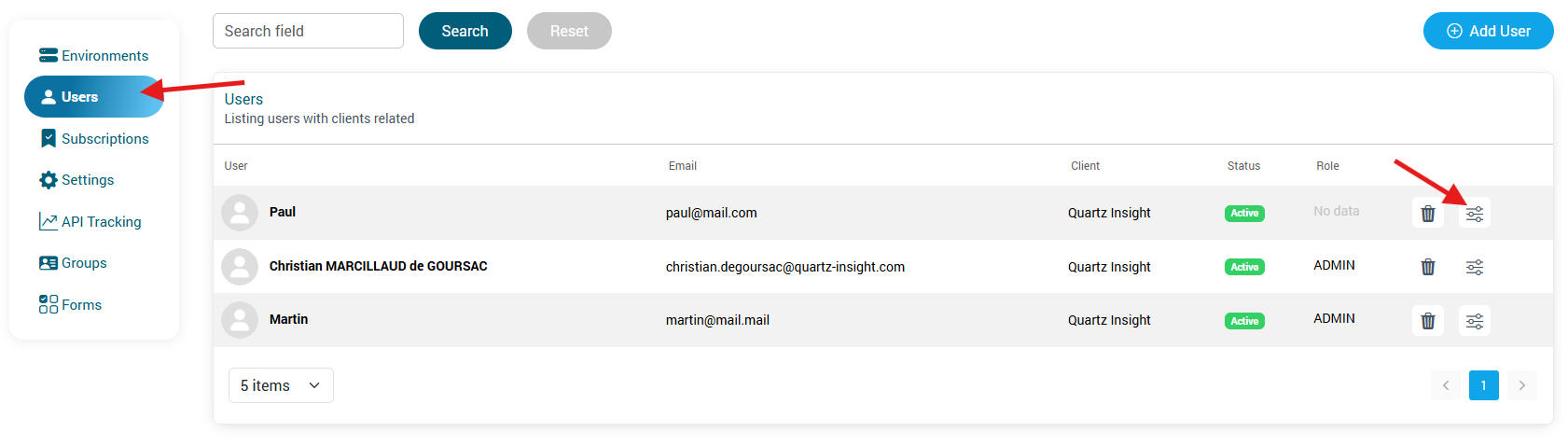
2. Setting the Identifier
Enter the user’s SSO login identifier, then save.
