Users
This section describes the features that allow you to add, edit, and delete a user.
It also explains how to associate or remove a user from a subscription.
User Management
1. Adding a User
A user can be added from the “Users” view by clicking “Add User”.
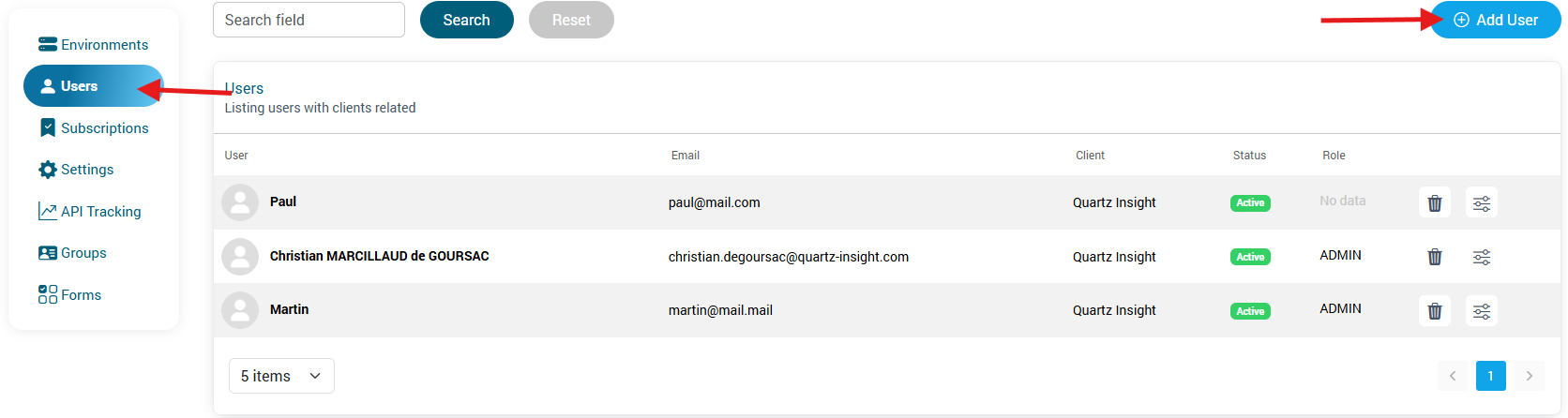
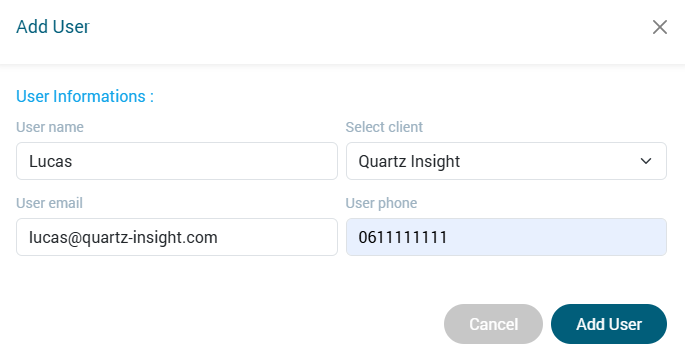
Fill in the following information:
- Name
- Client
- Email address
- Phone number
Then click “Add User” to confirm the creation.
2. Editing a User
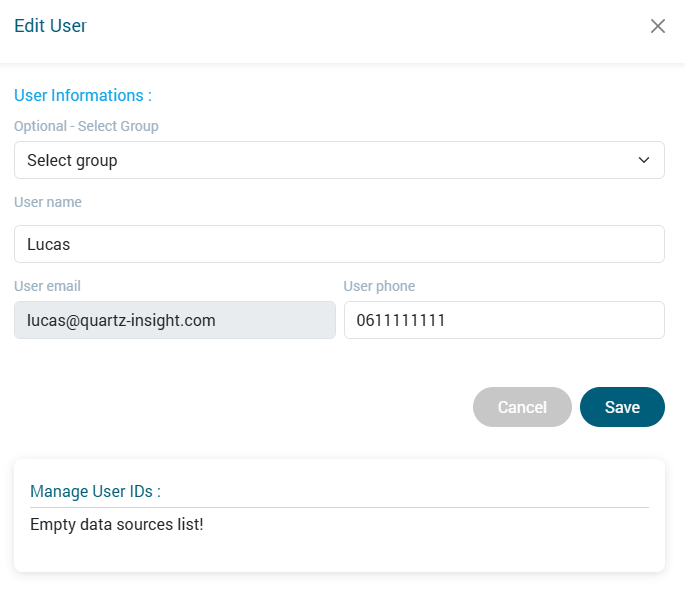
To edit a user, click the edit button associated with the desired user.

The following actions are available:
- Edit the user’s name
- Edit the phone number
- Assign the user to an existing group
Once modifications are complete, click “Save”.
3. Deleting a User
To delete a user, click the trash icon associated with the user’s row.

Subscription Management
Each subscription includes a license that grants specific rights to the users associated with it.
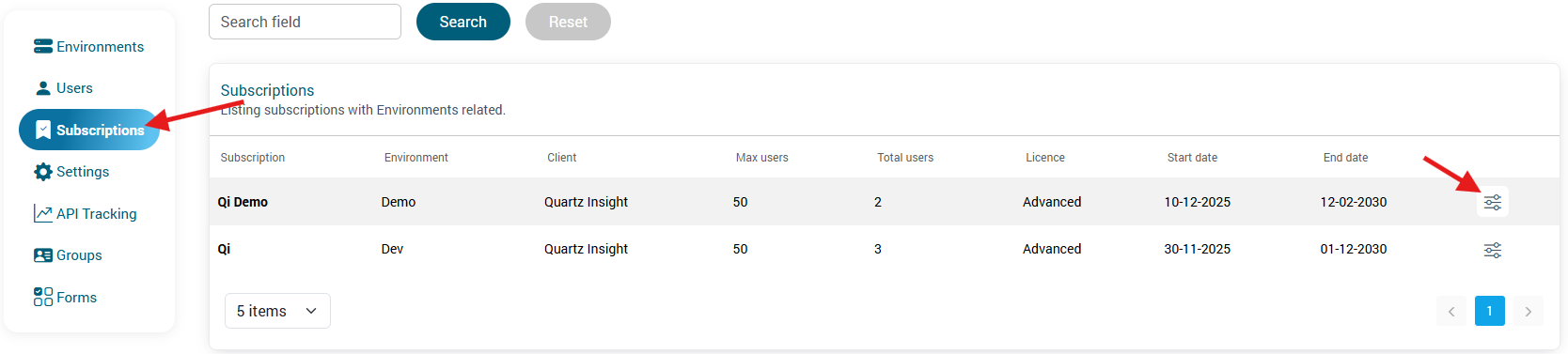
Adding or removing users from a subscription is done from the “Subscriptions” view by clicking the subscription’s edit button.
1. Adding a User to a Subscription
- Select the user to add.
- Click “Add”.
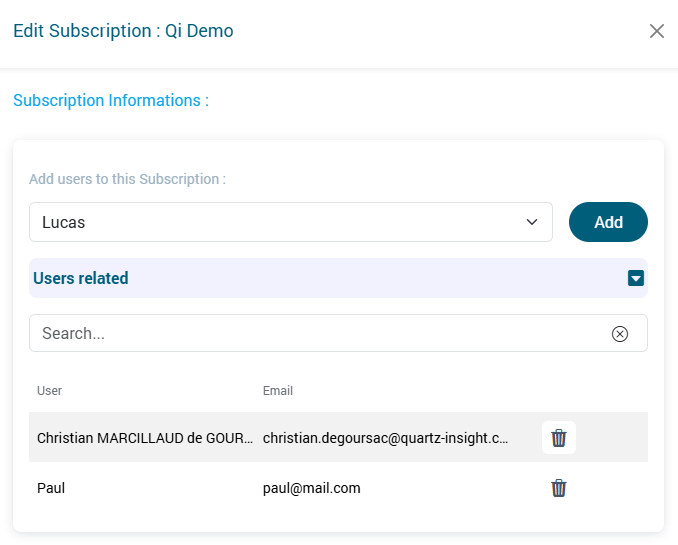
The user will then appear in the list of associated users.
They are automatically granted the rights defined by the license and can access their environment.
2. Removing a User from a Subscription
In the list of associated users:
- Click the trash icon next to the user.

Warning: A user removed from a subscription immediately loses the associated rights and will no longer be able to access their environment.
Each client has one or more environments. A subscription is associated with a specific environment, and users can be assigned to each subscription. If a user is not assigned to a subscription or has been removed from it, they will not have the necessary permissions to connect to QiBates.