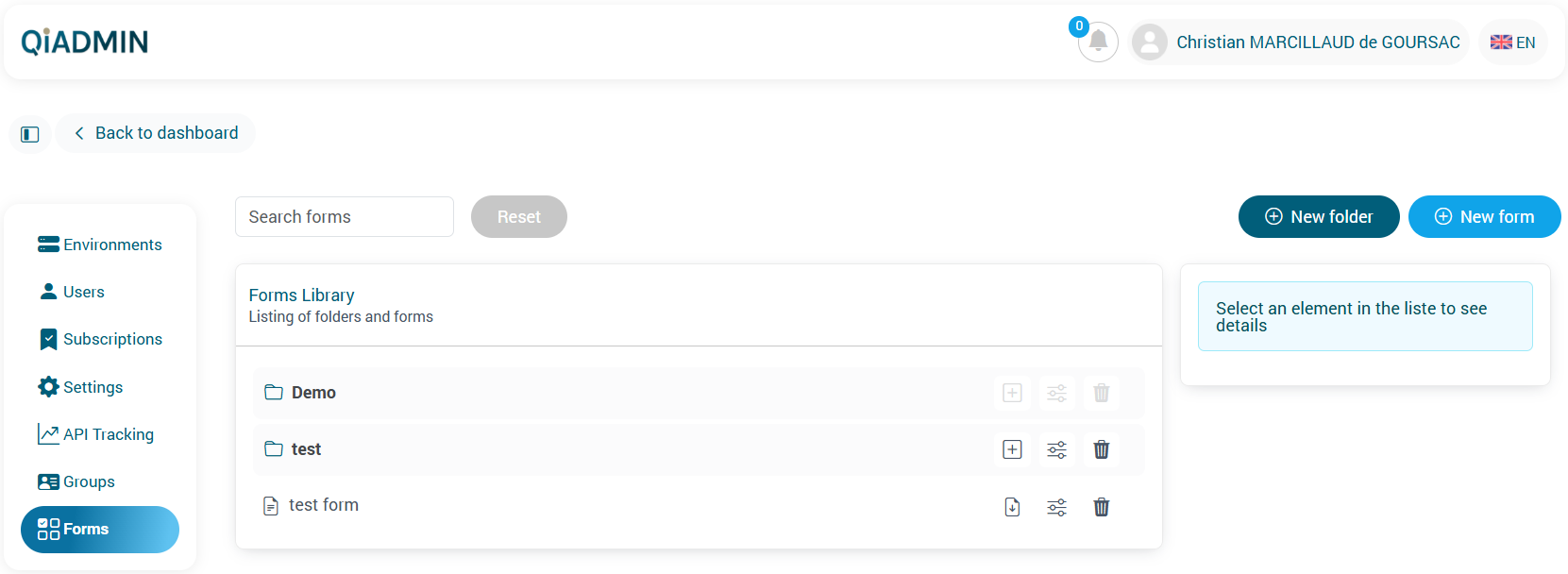
Forms Library
This page explains how to use the Forms Library in the Manager.
Folder
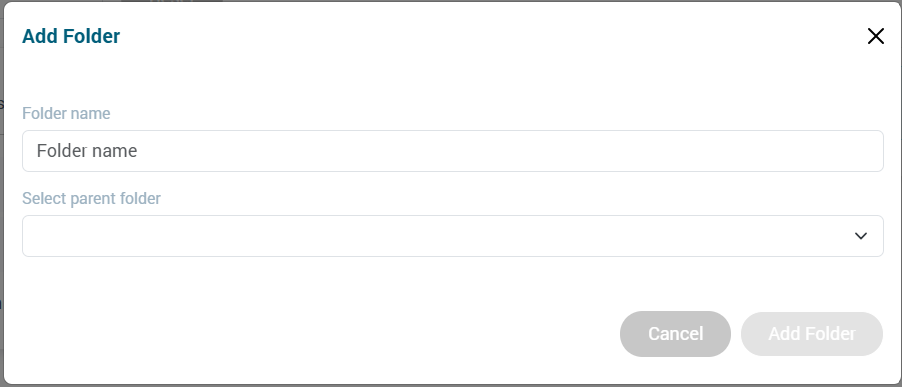
1) Adding a Folder
To add a new folder, click the “New folder” button or the “+” icon.


Then fill in:
- the folder name,
- the parent folder.
If no parent folder is selected, the folder will be created at the root.
2) Deleting a Folder
You can delete an existing folder by clicking the trash icon.

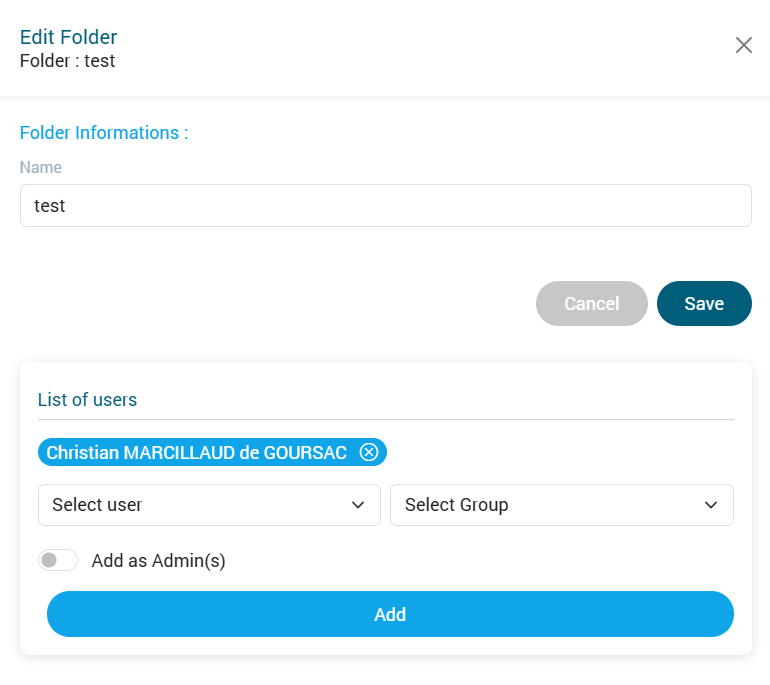
3) Editing a Folder
To edit a folder, click the “Edit” button.

A window appears, allowing you to:
- modify the folder name,
- add users (administrators or non-administrators).
Form
1) Adding a Form
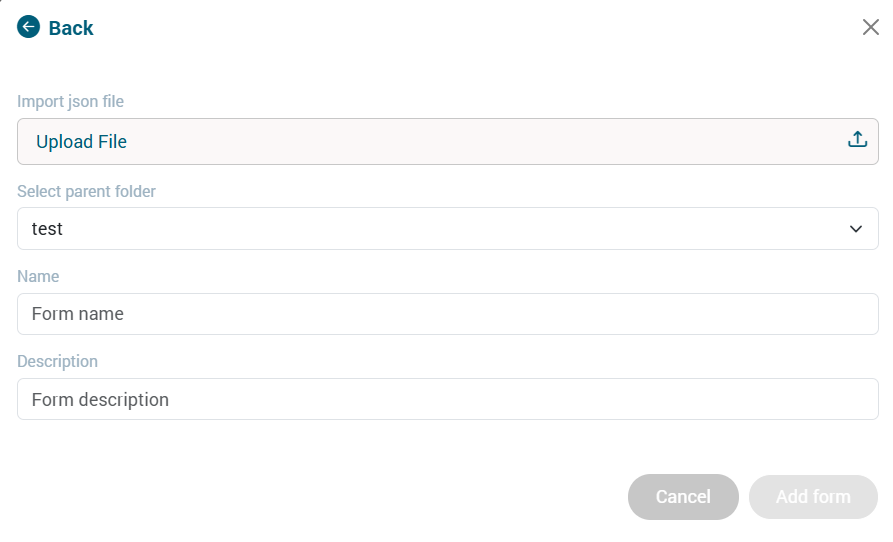
To add a form, click “New form” or the “+” icon.


Fill in:
- the local file,
- the form name,
- a parent folder (optional — if none is selected, the form will be created at the root),
- a description.
2) Deleting a Form
You can delete an existing form by clicking the trash icon.

3) Editing a Form
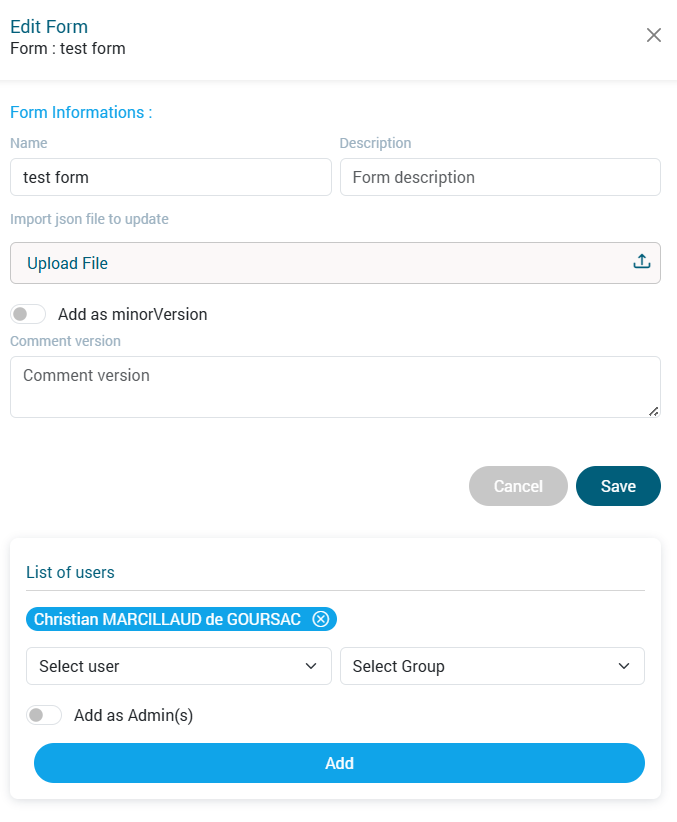
To edit a form, click “Edit”.

A window appears, allowing you to:
- edit the name,
- edit the description,
- add users (administrators or non-administrators),
- update the form version.
When updating:
- You choose whether the change is major or minor (which determines the version number).
- With every new version, an automatic email is sent to all users with access rights to the form, informing them that a new version is available.
Version Management
You can also:
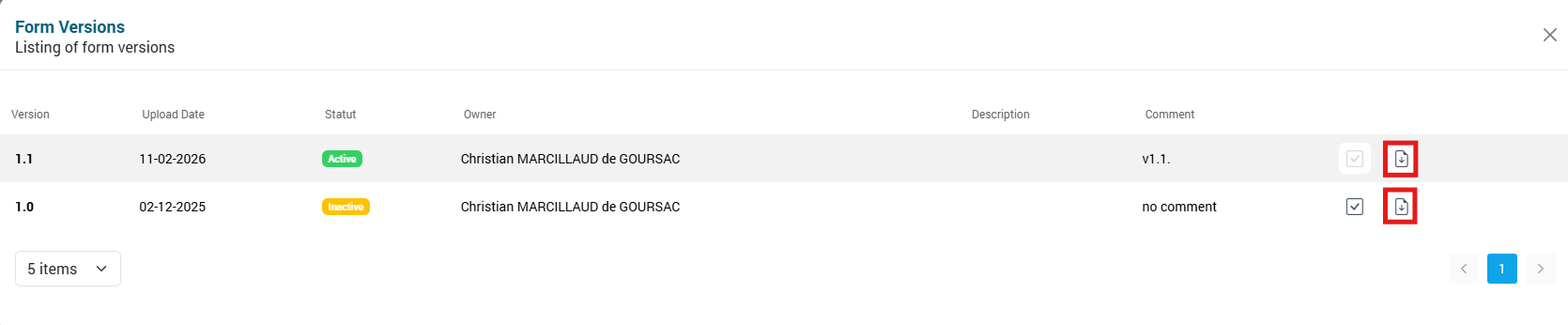
- switch the active version to revert to a previous one.
To do so, click “View history” in the form details panel.
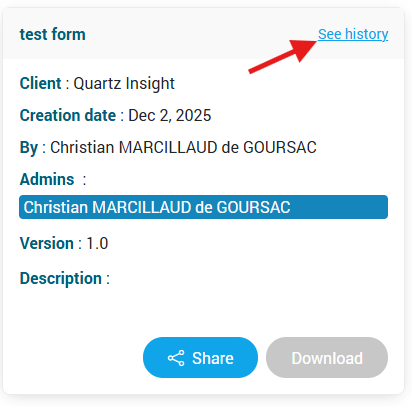
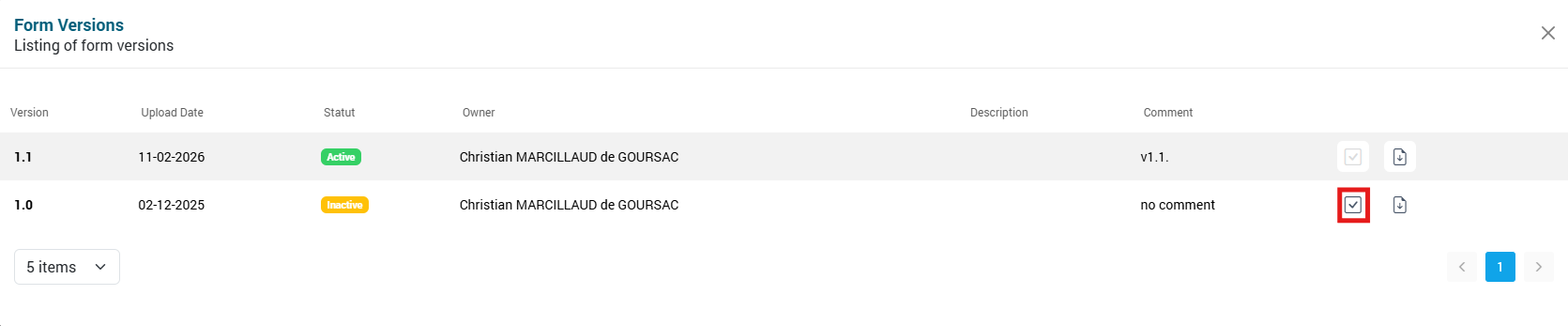
A window listing all versions appears.
Click “Activate version” to activate another version.
4) Downloading a Form
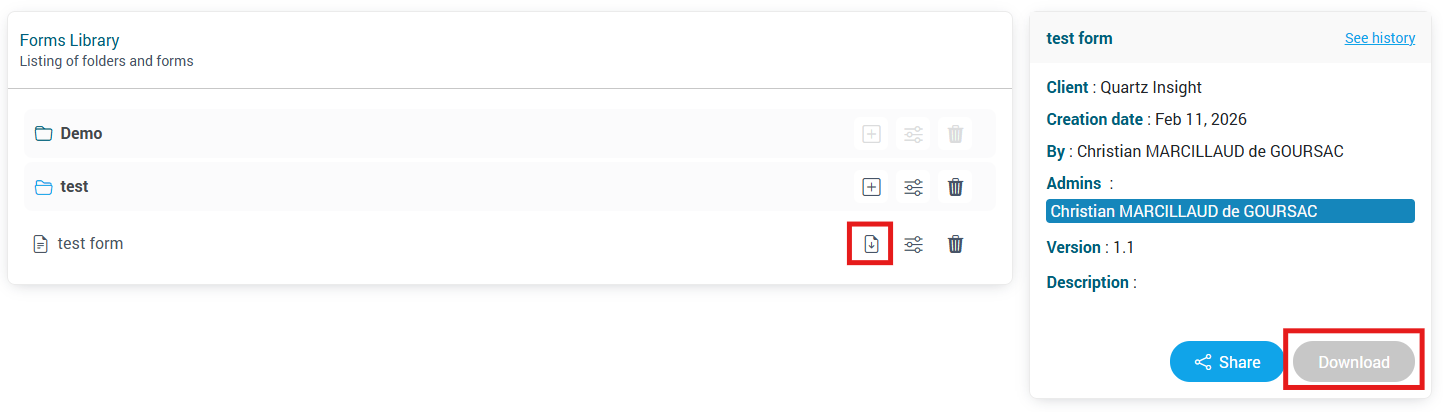
To download the active version of a form:
- click the “Download” button next to the form name,
or - use the button in the details window.
To download a specific version, use the “Download” button in the version list.
User Rights Management
1) Adding a User
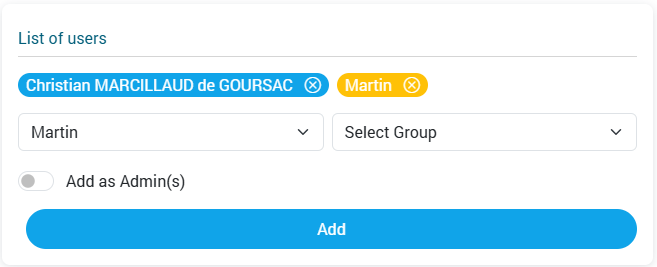
To add a user to a folder or a form, click “Edit”.
You can:
- add a user individually,
- add all users from a group (the selected role is applied to all members of the group).
You may assign the role admin or non-admin.

2) Rights and Inherited Rights
- All rights assigned to a parent folder are inherited by its subfolders and child forms.
- Only users with admin rights on a folder or a form can edit or delete it.
- It is not possible to remove an inherited user from a subfolder or a form.
The user must be removed from the folder or form where they were originally added.

File Sharing
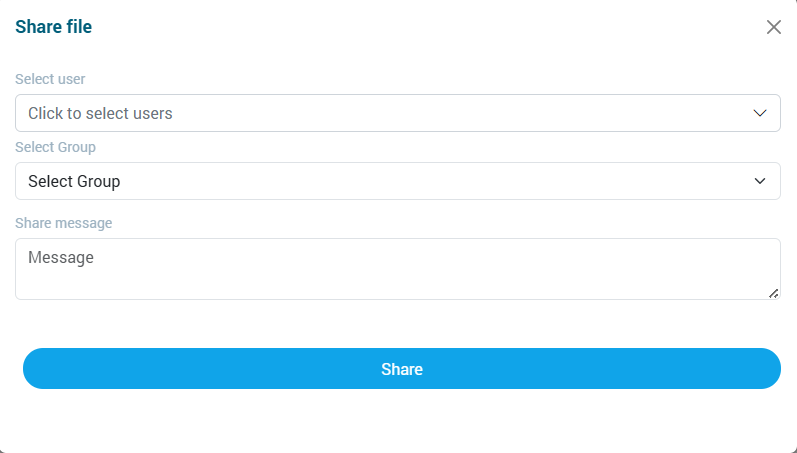
All users with rights on a form — administrators or not — can share a file.
An email with the file attached will be sent to the selected users who have access rights to the form.
To share a file:
- Click the “Share” button in the form details view.
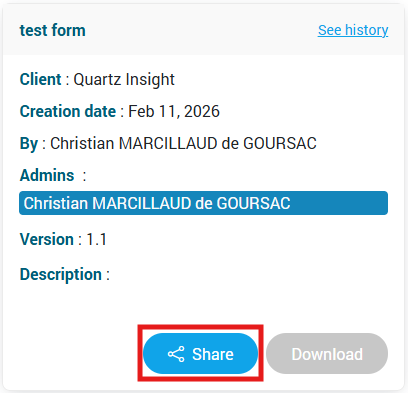
A window opens where you can select:
- users individually,
- or share with an entire group.
Only users in the group who have access rights to the form will receive the email.